

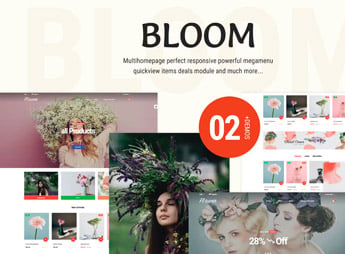
Description
Bloom builds a Shopify store for flower shops and wedding decor studios, with floral arrangement galleries, a delivery date picker, and dedicated pages for bouquets and gift baskets. It’s for anyone who sells flowers for events, creates ceremony decor, or ships subscription bouquets and needs to organize orders by delivery date instead of fixed inventory — something you rarely find in generic e-commerce themes.
Bloom Key Features
- Floral arrangement gallery
Displays bouquets and arrangements in large photos, organized by occasion and color. - Delivery date picker
Lets customers choose the exact day the arrangement should arrive. - Categories by occasion
Separates products into weddings, birthdays, sympathy, and holidays right in the navigation. - Personalized gift card message
Adds a text field so customers can write a note to go with the bouquet. - Event and wedding pages
Sets aside dedicated sections for ceremony and party decor packages.
Bloom Benefits
- Delivery on the right day
Prevents date mix-ups for occasions where delivery timing matters most. - Soft, elegant look
Uses a clean layout that enhances the color and texture of the flowers. - Sales by special occasion
Makes it easy to find the right arrangement for a wedding, memorial, or birthday in seconds. - A personal touch on every order
Lets customers personalize the gift with a message — no phone call required.
Who Is Bloom For?
- Anyone selling flowers and arrangements for events.
- Wedding and party decor studios.
- Flower shops shipping monthly subscription bouquets.
- Event planners reselling ready-made floral decor.
How to Download Bloom
Bloom is available for download here on Ultrapack. In your store dashboard, go to Online Store > Themes > Add theme and upload the file to install the layout. Then add your arrangements, set delivery windows, and adjust the colors in the Shopify editor.
Selling flowers comes with a quirk few themes handle well: the right product depends on the date and the occasion, not just color or price. Bloom organizes the catalog around exactly that, which helps anyone working with weddings or event decor keep orders straight even during peak season.
Frequently asked questions
Is Bloom Shopify Theme GPL?
Yes. Bloom Shopify Theme is distributed under the GPL (GNU General Public License). You may legally use, modify and redistribute it on as many sites as you want.
Can I use Bloom Shopify Theme on more than one site?
Yes. You can use Bloom Shopify Theme on as many sites as you want.
How much does Bloom Shopify Theme cost at Ultrapack?
Bloom Shopify Theme costs US$2.99 as a single purchase, and it is also included in the subscription plans starting at US$17/mo (Desenvolvedor I).
Does Bloom Shopify Theme include updates?
When a new version of Bloom Shopify Theme becomes available in the catalog, you can download the file during the access period of your purchase or subscription. To update, follow the installation or import procedure described in the documentation for the item and its platform.
Is Bloom Shopify Theme checked before it is made available for download?
Files for Bloom Shopify Theme are scanned before publication by UltraHub using ClamAV and YARA rules to detect known threats. This check does not guarantee the absence of risks. Check the item requirements, make a backup, and follow the installation or import instructions for its platform.
How to install
Updates: manual. When a new version comes out, download it on this same page and upload the new file from the Shopify admin. This item is not installed through WordPress.
A Shopify theme is not installed on WordPress. It is uploaded in your store dashboard.
- Download the file
elements-bloom-shopify-theme.zipand extract it on your computer. - Inside the package, look for the theme ZIP, which is the file Shopify accepts. It is usually in a folder named after the theme, and it has the
assets,layout,sectionsandtemplatesfolders inside. - In the Shopify dashboard, go to Online Store > Themes.
- Under Theme library, click Add theme > Upload zip file and upload the theme ZIP.
- Use Preview to check it, and Publish when you want it live.
- Shopify rejects packages that are too large. If the upload fails because of size, take the documentation and demo files out of the folder before zipping it.
Stuck on a step? Open a ticket telling us which one you stopped at.


