Description
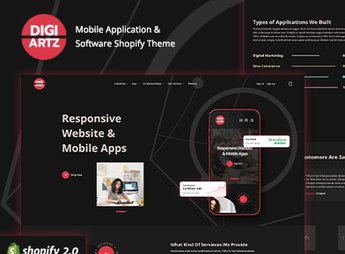
Digiartz organizes a Shopify store built for agencies, studios, and teams that sell software, apps, and SaaS subscriptions, with portfolio sections, subscription plans, and integrations already set up for digital products and services. Anyone developing their own tools, plugins, or technology services gets a ready-made showcase with room for case studies, a plan comparison table, and technical presentation of each product, without resorting to generic retail themes.
Main Features of Digiartz
- Digital portfolio showcase
Displays technology projects, cases, and products in organized blocks. - SaaS plans table
Compares features and prices of monthly and annual subscriptions side by side. - Sections for studios and agencies
Presents team, services, and differentiators in a dedicated per-page layout. - Mobile-adapted layout
Automatically reorganizes menus, grids, and banners on smaller screens. - Integration with Shopify apps
Connects chat, review, and checkout tools directly through the theme editor.
Benefits of Digiartz
- More professional presentation
Reinforces the credibility of those selling software and technical services. - Less setup time
Arrives with plan and portfolio sections already structured for immediate use. - Clearer plan comparison
Makes it easier for visitors to choose between subscriptions with different prices. - Less dependency on plugins
Already covers portfolio, plans, and blog without installing additional paid apps.
Who Is Digiartz For?
- Anyone running a software development agency.
- Anyone selling their own plugins, extensions, or apps.
- Anyone operating a subscription-based digital products studio.
- Anyone offering technology services under the SaaS model.
How to Download Digiartz
Digiartz is available for download here on Ultrapack. After getting the file, go to your Shopify dashboard and upload the theme under Online Store > Themes > Add theme. Then just publish and customize sections through the store’s visual editor.
Technology teams often spend too much time adapting generic retail themes to present software and digital services. With sections already designed for portfolio, plans, and technical presentation, Digiartz cuts down on that work and leaves the store better aligned with what the agency or studio actually sells.
Frequently asked questions
Is Digiartz – Software & App Store Shopify Theme GPL?
Yes. Digiartz – Software & App Store Shopify Theme is distributed under the GPL (GNU General Public License). You may legally use, modify and redistribute it on as many sites as you want.
Can I use Digiartz – Software & App Store Shopify Theme on more than one site?
Yes. You can use Digiartz – Software & App Store Shopify Theme on as many sites as you want.
How much does Digiartz – Software & App Store Shopify Theme cost at Ultrapack?
Digiartz – Software & App Store Shopify Theme costs US$2.99 as a single purchase, and it is also included in the subscription plans starting at US$17/mo (Desenvolvedor I).
Does Digiartz – Software & App Store Shopify Theme include updates?
When a new version of Digiartz – Software & App Store Shopify Theme becomes available in the catalog, you can download the file during the access period of your purchase or subscription. To update, follow the installation or import procedure described in the documentation for the item and its platform.
Is Digiartz – Software & App Store Shopify Theme checked before it is made available for download?
Files for Digiartz – Software & App Store Shopify Theme are scanned before publication by UltraHub using ClamAV and YARA rules to detect known threats. This check does not guarantee the absence of risks. Check the item requirements, make a backup, and follow the installation or import instructions for its platform.
How to install
Updates: manual. When a new version comes out, download it on this same page and upload the new file from the Shopify admin. This item is not installed through WordPress.
A Shopify theme is not installed on WordPress. It is uploaded in your store dashboard.
- Download the file
elements-digiartz-software-app-store-shopify-theme.zipand extract it on your computer. - Inside the package, look for the theme ZIP, which is the file Shopify accepts. It is usually in a folder named after the theme, and it has the
assets,layout,sectionsandtemplatesfolders inside. - In the Shopify dashboard, go to Online Store > Themes.
- Under Theme library, click Add theme > Upload zip file and upload the theme ZIP.
- Use Preview to check it, and Publish when you want it live.
- Shopify rejects packages that are too large. If the upload fails because of size, take the documentation and demo files out of the folder before zipping it.
Stuck on a step? Open a ticket telling us which one you stopped at.