

Description
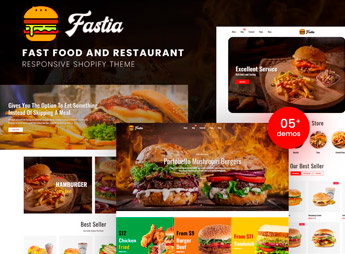
Fastia builds a Shopify store for burger joints and fast food restaurants, with a digital grid menu, daily combo highlights, and a direct order button on every menu item. It serves those who sell burgers, pizza, or barbecue plates and need a fast, easy-to-browse online menu, without depending on a static PDF or a third-party app to close the order at any time of day right on the site.
Main Features of Fastia
- Grid Menu
Displays dishes and combos in visual blocks organized by category. - Combo Highlights
Reserves a block on the homepage for the day’s deals. - Quick Order Button
Places the add-to-cart button right next to the dish. - Item Sheet with Photo
Shows the photo, ingredients, and price of each menu item. - Mobile Layout
Adapts the menu and cart for orders placed from a smartphone.
Benefits of Fastia
- Faster Ordering
The customer chooses and closes the order without leaving the dish’s page. - More Combo Sales
The homepage highlight increases demand for the day’s combos. - Fewer Order Mistakes
The complete item sheet prevents ingredient mix-ups due to lack of information. - Service Outside Business Hours
The store keeps taking orders even with the kitchen closed or a reduced team.
Who Is Fastia For?
- Those who run a burger joint, pizzeria, or fast food place with delivery.
- Those who sell homestyle meals or barbecue by order.
- Those who want to reduce dependence on delivery apps.
- Those who take orders via WhatsApp and want an organized digital menu.
How to Download Fastia
Fastia is available for download here at Ultrapack. Installation follows the Shopify path, under Online Store > Themes > Add theme, uploading the compressed file directly through the store’s admin panel. Once installed, just register the dishes and organize the menu by category.
A confusing menu costs lost orders, especially during peak hours when the customer decides fast or gives up on the purchase. Fastia organizes dishes, combos, and prices into a single grid, which reduces hesitation when choosing and makes closing the order more straightforward for anyone selling ready-made food.
Frequently asked questions
Is Fastia – Fast Food & Restaurant Shopify Theme GPL?
Yes. Fastia – Fast Food & Restaurant Shopify Theme is distributed under the GPL (GNU General Public License). You may legally use, modify and redistribute it on as many sites as you want.
Can I use Fastia – Fast Food & Restaurant Shopify Theme on more than one site?
Yes. You can use Fastia – Fast Food & Restaurant Shopify Theme on as many sites as you want.
How much does Fastia – Fast Food & Restaurant Shopify Theme cost at Ultrapack?
Fastia – Fast Food & Restaurant Shopify Theme costs US$2.99 as a single purchase, and it is also included in the subscription plans starting at US$17/mo (Desenvolvedor I).
Does Fastia – Fast Food & Restaurant Shopify Theme include updates?
When a new version of Fastia – Fast Food & Restaurant Shopify Theme becomes available in the catalog, you can download the file during the access period of your purchase or subscription. To update, follow the installation or import procedure described in the documentation for the item and its platform.
Is Fastia – Fast Food & Restaurant Shopify Theme checked before it is made available for download?
Files for Fastia – Fast Food & Restaurant Shopify Theme are scanned before publication by UltraHub using ClamAV and YARA rules to detect known threats. This check does not guarantee the absence of risks. Check the item requirements, make a backup, and follow the installation or import instructions for its platform.
How to install
Updates: manual. When a new version comes out, download it on this same page and upload the new file from the Shopify admin. This item is not installed through WordPress.
A Shopify theme is not installed on WordPress. It is uploaded in your store dashboard.
- Download the file
elements-fastia-fast-food-restaurant-shopify-theme.zipand extract it on your computer. - Inside the package, look for the theme ZIP, which is the file Shopify accepts. It is usually in a folder named after the theme, and it has the
assets,layout,sectionsandtemplatesfolders inside. - In the Shopify dashboard, go to Online Store > Themes.
- Under Theme library, click Add theme > Upload zip file and upload the theme ZIP.
- Use Preview to check it, and Publish when you want it live.
- Shopify rejects packages that are too large. If the upload fails because of size, take the documentation and demo files out of the folder before zipping it.
Stuck on a step? Open a ticket telling us which one you stopped at.


