

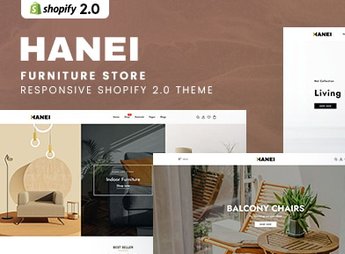
Description
Hanei builds a Shopify store for furniture and home decor items, with collections organized by room, a product grid with filters by category and material, and a product page with high-resolution photo galleries. The theme suits those who sell furniture, lighting and decor items online, and helps the customer visualize the finish, material and color of each piece before deciding to buy without visiting a physical store.
Main Features of Hanei
- Collections by room
Organizes living room, bedroom, kitchen and office into separate collections in the store. - Filter by material
Filters the catalog by category, material and price range. - High-resolution gallery
Shows several photos of each piece with finish detail. - New arrivals showcase
Highlights new furniture and discounted pieces on the homepage. - Responsive layout
Adapts the menu, product grid and cart for mobile and tablet.
Benefits of Hanei
- Clearer navigation
Helps the customer quickly find the right piece for the room. - Less doubt about the material
Detailed photos reduce uncertainty before the purchase. - Consistent store on any screen
Keeps the same navigation from desktop to mobile without breaking the layout. - Highlight for new arrivals
Gives immediate visibility to new pieces as soon as they enter the catalog.
Who Is Hanei For?
- Those who sell custom or made-to-order furniture online.
- Decor stores that want their own online catalog.
- Woodworking shops that sell original pieces for the living room and bedroom.
- Those who import or resell lighting and decor items.
How to Download Hanei
Hanei is available for download here at Ultrapack. After downloading the file, install it via Online Store > Themes > Add theme in the Shopify admin and organize the collections by room before publishing the store.
Since the product relies heavily on imagery, it’s worth photographing each piece from more than one angle to make the most of the high-resolution gallery. Those who already sell furniture through a printed catalog or WhatsApp can use the store to centralize orders without losing control of inventory.
Frequently asked questions
Is Hanei – Furniture Store Responsive Shopify 2.0 Theme GPL?
Yes. Hanei – Furniture Store Responsive Shopify 2.0 Theme is distributed under the GPL (GNU General Public License). You may legally use, modify and redistribute it on as many sites as you want.
Can I use Hanei – Furniture Store Responsive Shopify 2.0 Theme on more than one site?
Yes. You can use Hanei – Furniture Store Responsive Shopify 2.0 Theme on as many sites as you want.
How much does Hanei – Furniture Store Responsive Shopify 2.0 Theme cost at Ultrapack?
Hanei – Furniture Store Responsive Shopify 2.0 Theme costs US$2.99 as a single purchase, and it is also included in the subscription plans starting at US$17/mo (Desenvolvedor I).
Does Hanei – Furniture Store Responsive Shopify 2.0 Theme include updates?
When a new version of Hanei – Furniture Store Responsive Shopify 2.0 Theme becomes available in the catalog, you can download the file during the access period of your purchase or subscription. To update, follow the installation or import procedure described in the documentation for the item and its platform.
Is Hanei – Furniture Store Responsive Shopify 2.0 Theme checked before it is made available for download?
Files for Hanei – Furniture Store Responsive Shopify 2.0 Theme are scanned before publication by UltraHub using ClamAV and YARA rules to detect known threats. This check does not guarantee the absence of risks. Check the item requirements, make a backup, and follow the installation or import instructions for its platform.
How to install
Updates: manual. When a new version comes out, download it on this same page and upload the new file from the Shopify admin. This item is not installed through WordPress.
A Shopify theme is not installed on WordPress. It is uploaded in your store dashboard.
- Download the file
elements-hanei-furniture-store-shopify-2-0-theme.zipand extract it on your computer. - Inside the package, look for the theme ZIP, which is the file Shopify accepts. It is usually in a folder named after the theme, and it has the
assets,layout,sectionsandtemplatesfolders inside. - In the Shopify dashboard, go to Online Store > Themes.
- Under Theme library, click Add theme > Upload zip file and upload the theme ZIP.
- Use Preview to check it, and Publish when you want it live.
- Shopify rejects packages that are too large. If the upload fails because of size, take the documentation and demo files out of the folder before zipping it.
Stuck on a step? Open a ticket telling us which one you stopped at.


