

Description
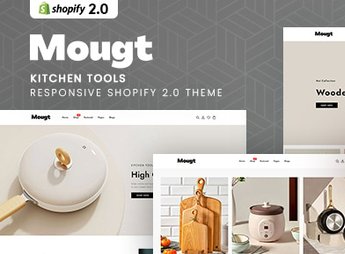
Mougt organizes a complete Shopify 2.0 store focused on kitchen tools and gadgets, featuring room-by-room storefronts, gift kit blocks, and material badges already configured in the theme. It serves those who sell cookware, cutlery, silicone utensils, or kitchen decor accessories, and want to separate categories like preparation, storage, serving, and organization without relying on an external paid app to build each store section.
Main Features of Mougt
- Room-by-room storefront
Separates products by room, such as the kitchen, dining room, and gourmet area. - Kit blocks
Groups combined items into ready-to-gift or replacement kits. - Material badge
Indicates whether an item is made of stainless steel, silicone, wood, or ceramic. - Usage category filter
Allows customers to separate preparation, storage, and serving in just a few clicks. - Responsive layout
Adapts the product grid and menus for mobile phones, tablets, and desktops.
Benefits of Mougt
- Higher average order value
Encourages bundled sales by displaying kits and combined items together. - More informed purchasing
Gives customers clarity about materials before making a purchase decision. - More navigable catalog
Reduces search time in stores with many similar items. - Private label look
Conveys the impression of curation rather than a generic bazaar.
Who Is Mougt For?
- Those who sell cookware, cutlery, and kitchen utensils.
- Those who assemble home and kitchen gift kits.
- Those who resell home decor and organization accessories.
- Those who manage a home utility and tool store.
How to Download Mougt
Mougt is available for download here on Ultrapack. Installation follows the standard Shopify path via Online Store > Themes > Add theme, uploading the zipped file through the admin panel. Once published, simply organize the products by room and kit type.
Kitchenware stores often mix categories indiscriminately, which leaves customers lost between pots, cutlery, and decor accessories on the same page. Mougt separates this right from the theme structure, helping anyone building a large catalog without losing visual organization.
Frequently asked questions
Is Mougt – Kitchen Tools Responsive Shopify 2.0 Theme GPL?
Yes. Mougt – Kitchen Tools Responsive Shopify 2.0 Theme is distributed under the GPL (GNU General Public License). You may legally use, modify and redistribute it on as many sites as you want.
Can I use Mougt – Kitchen Tools Responsive Shopify 2.0 Theme on more than one site?
Yes. You can use Mougt – Kitchen Tools Responsive Shopify 2.0 Theme on as many sites as you want.
How much does Mougt – Kitchen Tools Responsive Shopify 2.0 Theme cost at Ultrapack?
Mougt – Kitchen Tools Responsive Shopify 2.0 Theme costs US$2.99 as a single purchase, and it is also included in the subscription plans starting at US$17/mo (Desenvolvedor I).
Does Mougt – Kitchen Tools Responsive Shopify 2.0 Theme include updates?
When a new version of Mougt – Kitchen Tools Responsive Shopify 2.0 Theme becomes available in the catalog, you can download the file during the access period of your purchase or subscription. To update, follow the installation or import procedure described in the documentation for the item and its platform.
Is Mougt – Kitchen Tools Responsive Shopify 2.0 Theme checked before it is made available for download?
Files for Mougt – Kitchen Tools Responsive Shopify 2.0 Theme are scanned before publication by UltraHub using ClamAV and YARA rules to detect known threats. This check does not guarantee the absence of risks. Check the item requirements, make a backup, and follow the installation or import instructions for its platform.
How to install
Updates: manual. When a new version comes out, download it on this same page and upload the new file from the Shopify admin. This item is not installed through WordPress.
A Shopify theme is not installed on WordPress. It is uploaded in your store dashboard.
- Download the file
elements-mougt-kitchen-tools-responsive-shopify-2-0-theme.zipand extract it on your computer. - Inside the package, look for the theme ZIP, which is the file Shopify accepts. It is usually in a folder named after the theme, and it has the
assets,layout,sectionsandtemplatesfolders inside. - In the Shopify dashboard, go to Online Store > Themes.
- Under Theme library, click Add theme > Upload zip file and upload the theme ZIP.
- Use Preview to check it, and Publish when you want it live.
- Shopify rejects packages that are too large. If the upload fails because of size, take the documentation and demo files out of the folder before zipping it.
Stuck on a step? Open a ticket telling us which one you stopped at.


