

Description
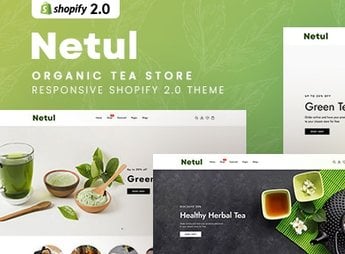
Netul builds a Shopify store focused on organic teas and beverages, with a full-screen product gallery, category filters, and storytelling blocks to explain the origin of the ingredients and the harvesting and roasting process. It works for anyone selling tea blends, medicinal herbs, or natural beverages who needs a storefront that combines packaging photos with text about provenance, cultivation, and the artisanal care behind the product.
Netul’s Main Features
- Customizable editor sections
Drag-and-drop blocks in the Shopify 2.0 editor to build the homepage without code. - Product gallery with zoom
Thumbnails swap the main image and the zoom shows packaging details. - Filter by category and flavor
A sidebar filters the catalog by tea type, flavor, and price. - Sliding side cart
The cart opens in a side panel without leaving the product page. - Menu with featured images
The main menu displays banners and thumbnail categories inside the dropdown.
Netul’s Benefits
- Store ready to publish
Reduces the time between buying the theme and having the store live. - Smooth navigation on mobile
The layout adapts to small screens without losing product information. - Fewer clicks to purchase
Quick view and the side cart shorten the path between browsing and checkout. - Visual identity without extra plugins
The native sections cover banner, testimonial, and newsletter without a paid app.
Who Is Netul For?
- Anyone selling small-scale artisanal tea blends and infusions.
- Organic beverage brands that need to tell the story of their product’s origin.
- Anyone migrating from a marketplace to their own Shopify store.
- Cafes and tea houses that also sell online.
How to Download Netul
Netul is available for download here on Ultrapack. After accessing the admin panel, upload the file under Online Store > Themes > Add theme and publish once you’ve adjusted colors, menu, banners, and the homepage sections before promoting the store to customers.
Organic teas and beverages sell on trust in their origin, and the store’s presentation weighs on that decision as much as the product itself. With sections designed to tell the brand’s story and show the packaging in detail, Netul helps convey that care without depending on expensive professional photos or a developer for every adjustment.
Frequently asked questions
Is Netul – Organic Tea Store Shopify 2.0 Theme GPL?
Yes. Netul – Organic Tea Store Shopify 2.0 Theme is distributed under the GPL (GNU General Public License). You may legally use, modify and redistribute it on as many sites as you want.
Can I use Netul – Organic Tea Store Shopify 2.0 Theme on more than one site?
Yes. You can use Netul – Organic Tea Store Shopify 2.0 Theme on as many sites as you want.
How much does Netul – Organic Tea Store Shopify 2.0 Theme cost at Ultrapack?
Netul – Organic Tea Store Shopify 2.0 Theme costs US$2.99 as a single purchase, and it is also included in the subscription plans starting at US$17/mo (Desenvolvedor I).
Does Netul – Organic Tea Store Shopify 2.0 Theme include updates?
When a new version of Netul – Organic Tea Store Shopify 2.0 Theme becomes available in the catalog, you can download the file during the access period of your purchase or subscription. To update, follow the installation or import procedure described in the documentation for the item and its platform.
Is Netul – Organic Tea Store Shopify 2.0 Theme checked before it is made available for download?
Files for Netul – Organic Tea Store Shopify 2.0 Theme are scanned before publication by UltraHub using ClamAV and YARA rules to detect known threats. This check does not guarantee the absence of risks. Check the item requirements, make a backup, and follow the installation or import instructions for its platform.
How to install
Updates: manual. When a new version comes out, download it on this same page and upload the new file from the Shopify admin. This item is not installed through WordPress.
A Shopify theme is not installed on WordPress. It is uploaded in your store dashboard.
- Download the file
elements-netul-organic-tea-store-shopify-2-0-theme.zipand extract it on your computer. - Inside the package, look for the theme ZIP, which is the file Shopify accepts. It is usually in a folder named after the theme, and it has the
assets,layout,sectionsandtemplatesfolders inside. - In the Shopify dashboard, go to Online Store > Themes.
- Under Theme library, click Add theme > Upload zip file and upload the theme ZIP.
- Use Preview to check it, and Publish when you want it live.
- Shopify rejects packages that are too large. If the upload fails because of size, take the documentation and demo files out of the folder before zipping it.
Stuck on a step? Open a ticket telling us which one you stopped at.


