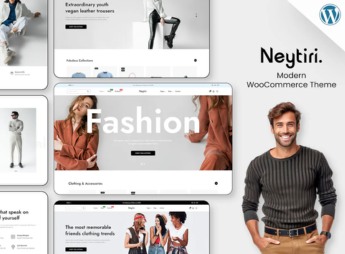
Description
Teenz lets you build complete Shopify stores for fashion, accessories, and boutiques, combining over 50 home page sections, 5 product page variants, and a mega menu with five distinct styles, built on the platform’s OS 2.0 structure. It serves streetwear, lingerie, swimwear, and print on demand brands that need quick shop, wishlist, and side-by-side product comparison.
Key Features of Teenz
- Mega menu in five styles
Organizes extensive product categories into distinct navigation layouts. - Quick Shop with Ajax cart
Opens product details and adds to cart without reloading the page. - Comparison of up to 8 products
Puts specifications side by side to make purchase decisions easier. - Instant pop-up search
Shows real-time product results as the customer types. - Built-in size chart
Displays the size chart directly on the product page, reducing exchanges and returns.
Benefits of Teenz
- Fast store launch
Ready-made home page sections cut down storefront setup time. - Lower-friction checkout
Quick shop and Ajax cart keep customers from leaving the page while shopping. - Faster purchase decisions
Size chart and product comparison resolve doubts before checkout. - More social proof on the storefront
Recent sales and review pop-ups reinforce visitor trust.
Who Is Teenz For?
- Anyone selling clothing, streetwear, or lingerie who needs a lookbook to showcase collections.
- Anyone working with print on demand who deals with frequent product and stock variations.
- Anyone selling accessories or footwear who wants to compare models side by side on the same page.
- Anyone serving international customers who relies on multi-currency pricing.
How to Download Teenz
Teenz is available for download here on Ultrapack. The step-by-step guide for installing this file on your Shopify store is in the How to install tab, next to this description.
Designed for fashion and accessories operations selling in more than one market, Teenz combines mega menu navigation, tag filters, and multi-currency pricing in a single installation on Shopify OS 2.0. The result is a storefront that keeps pace with seasonal collections without relying on constant manual adjustments to the store structure.
Frequently asked questions
Is Teenz – Multipurpose Shopify Theme OS 2.0 GPL?
Yes. Teenz – Multipurpose Shopify Theme OS 2.0 is distributed under the GPL (GNU General Public License). You may legally use, modify and redistribute it on as many sites as you want.
Can I use Teenz – Multipurpose Shopify Theme OS 2.0 on more than one site?
Yes. You can use Teenz – Multipurpose Shopify Theme OS 2.0 on as many sites as you want.
How much does Teenz – Multipurpose Shopify Theme OS 2.0 cost at Ultrapack?
Teenz – Multipurpose Shopify Theme OS 2.0 costs US$2.99 as a single purchase, and it is also included in the subscription plans starting at US$17/mo (Desenvolvedor I).
Does Teenz – Multipurpose Shopify Theme OS 2.0 include updates?
When a new version of Teenz – Multipurpose Shopify Theme OS 2.0 becomes available in the catalog, you can download the file during the access period of your purchase or subscription. To update, follow the installation or import procedure described in the documentation for the item and its platform.
Is Teenz – Multipurpose Shopify Theme OS 2.0 checked before it is made available for download?
Files for Teenz – Multipurpose Shopify Theme OS 2.0 are scanned before publication by UltraHub using ClamAV and YARA rules to detect known threats. This check does not guarantee the absence of risks. Check the item requirements, make a backup, and follow the installation or import instructions for its platform.
How to install
Updates: manual. When a new version comes out, download it on this same page and upload the new file from the Shopify admin. This item is not installed through WordPress.
A Shopify theme is not installed on WordPress. It is uploaded in your store dashboard.
- Download the file
elements-teenz-multipurpose-shopify-theme-os-2-0.zipand extract it on your computer. - Inside the package, look for the theme ZIP, which is the file Shopify accepts. It is usually in a folder named after the theme, and it has the
assets,layout,sectionsandtemplatesfolders inside. - In the Shopify dashboard, go to Online Store > Themes.
- Under Theme library, click Add theme > Upload zip file and upload the theme ZIP.
- Use Preview to check it, and Publish when you want it live.
- Shopify rejects packages that are too large. If the upload fails because of size, take the documentation and demo files out of the folder before zipping it.
Stuck on a step? Open a ticket telling us which one you stopped at.