Description
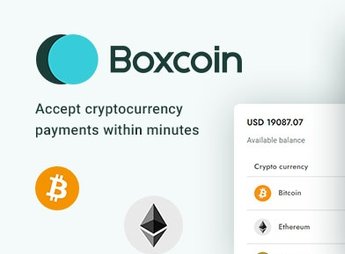
CryptoPay adds a cryptocurrency payment method to PrestaShop store checkouts, allowing you to receive Bitcoin and other digital currencies directly at the time of purchase, with transaction confirmation automatically recorded in the order. The module is for those who sell digital or physical products and want to accept crypto payment as an alternative to card and Boleto, without depending on an external intermediary to process the charge within the store’s administrative panel.
Key Features of CryptoPay
- Cryptocurrency Checkout
Adds the option to pay in Bitcoin and other digital currencies at checkout. - Automatic Confirmation
Updates the order status as soon as the transaction is confirmed on the network. - Configuration Panel
Allows you to choose which currencies to accept and define the receiving wallet. - Value Conversion
Calculates the crypto equivalent of the order value at the time of purchase. - Transaction History
Lists the cryptocurrency payments received along with the status of each.
Benefits of CryptoPay
- More Payment Methods
Expands checkout options for customers who prefer to pay in crypto. - Lower Intermediary Fee
Reduces dependence on card processors for part of the store’s sales. - International Reach
Facilitates sales to buyers in other countries without manual bank conversion. - Financial Control
Maintains a record of each crypto transaction within the order itself.
Who is CryptoPay Suitable For?
- Those who manage a PrestaShop store and want to accept Bitcoin.
- Stores that sell to an international audience.
- Those who sell digital products and seek an alternative to card payments.
- Those who already operate with cryptocurrency wallets on a daily basis.
How to Download CryptoPay
CryptoPay is available for download here on Ultrapack. After downloading the file, install the module in Design > Theme and Logo of the PrestaShop panel and configure the accepted currencies and receiving wallet before activating it in the checkout.
Network confirmation may take a few minutes depending on the chosen currency, so it’s worth warning the buyer about this timeframe on the checkout page itself, avoiding doubts about the order status while the transaction is still being validated on the blockchain.
Frequently asked questions
Is CryptoPay – Cryptocurrency payment module GPL?
Yes. CryptoPay – Cryptocurrency payment module is distributed under the GPL (GNU General Public License). You may legally use, modify and redistribute it on as many sites as you want.
Can I use CryptoPay – Cryptocurrency payment module on more than one site?
Yes. You can use CryptoPay – Cryptocurrency payment module on as many sites as you want.
How much does CryptoPay – Cryptocurrency payment module cost at Ultrapack?
CryptoPay – Cryptocurrency payment module costs US$2.99 as a single purchase, and it is also included in the subscription plans starting at US$17/mo (Desenvolvedor I).
Does CryptoPay – Cryptocurrency payment module include updates?
When a new version of CryptoPay – Cryptocurrency payment module becomes available in the catalog, you can download the file during the access period of your purchase or subscription. To update, follow the installation or import procedure described in the documentation for the item and its platform.
Is CryptoPay – Cryptocurrency payment module checked before it is made available for download?
Files for CryptoPay – Cryptocurrency payment module are scanned before publication by UltraHub using ClamAV and YARA rules to detect known threats. This check does not guarantee the absence of risks. Check the item requirements, make a backup, and follow the installation or import instructions for its platform.
How to install
Updates: manual. When a new version comes out, download it on this same page and follow the replacement or import process for the platform shown. This item is not updated through WordPress.
Extras gathers what is neither a WordPress theme nor a plugin: templates, scripts, project files and supporting material.
- Download the file
cryptopay-cryptocurrency-payment-module.zipand extract it on your computer. - Open the author documentation that came in the package. It tells you where each file goes.
- When there is a
Como Instalar.txtfile in the main folder of the package, read it first.
Stuck on a step? Open a ticket telling us which one you stopped at.