

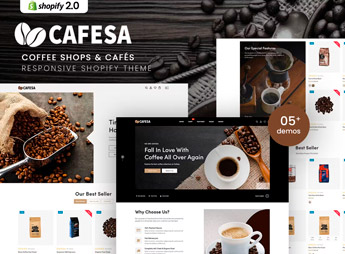
Description
Cafesa sets up a Shopify store for coffee shops and cafés that sell beans, capsules, blends, and brewing accessories online, highlighting coffee origin, roast intensity, flavor notes, and the option for a recurring product subscription. It’s ideal for those who roast their own coffee, resell selected brands, or manage a physical coffee shop that also wants to sell beans, capsules, and brewing accessories online, without losing the brand’s identity on the site.
Key Features of Cafesa
- Coffee origin highlighted
Shows country, farm, and altitude of origin on each bean’s product sheet. - Roast intensity
Classifies the product by roast level from lightest to darkest. - Recurring subscription
Allows scheduling periodic delivery of beans or capsules to the customer. - Flavor notes
Describes the sensory profile of each blend on the product page. - Brewing kits
Combines grinder, filter, and cup in ready-to-sell combos.
Benefits of Cafesa
- Predictable recurring revenue
Generates a fixed monthly income with coffee and capsule subscriptions. - Brand with unique identity
Reinforces the roastery’s story on each product page. - Higher average ticket
Encourages the sale of beans, filters, and brewing accessories together. - Easier purchase decision
Helps the customer choose based on flavor and roast profile.
Who is Cafesa for?
How to Download Cafesa
Cafesa is available for download here on Ultrapack. After downloading the file, access the store’s dashboard and go to Virtual Store > Themes > Add theme to upload the package and publish it on Shopify. The coffee shop has a ready-made online store to sell beans and accessories in minutes.
Those who sell coffee by subscription use the recurring plan structure to reduce cancellations and predict the volume of roasting for the following month. The layout also helps to tell the origin of each batch, which weighs on the decision of those who compare prices between different roasters.
Frequently asked questions
Is Cafesa – Coffee Shops & Cafés Shopify Theme GPL?
Yes. Cafesa – Coffee Shops & Cafés Shopify Theme is distributed under the GPL (GNU General Public License). You may legally use, modify and redistribute it on as many sites as you want.
Can I use Cafesa – Coffee Shops & Cafés Shopify Theme on more than one site?
Yes. You can use Cafesa – Coffee Shops & Cafés Shopify Theme on as many sites as you want.
How much does Cafesa – Coffee Shops & Cafés Shopify Theme cost at Ultrapack?
Cafesa – Coffee Shops & Cafés Shopify Theme costs US$2.99 as a single purchase, and it is also included in the subscription plans starting at US$17/mo (Desenvolvedor I).
Does Cafesa – Coffee Shops & Cafés Shopify Theme include updates?
When a new version of Cafesa – Coffee Shops & Cafés Shopify Theme becomes available in the catalog, you can download the file during the access period of your purchase or subscription. To update, follow the installation or import procedure described in the documentation for the item and its platform.
Is Cafesa – Coffee Shops & Cafés Shopify Theme checked before it is made available for download?
Files for Cafesa – Coffee Shops & Cafés Shopify Theme are scanned before publication by UltraHub using ClamAV and YARA rules to detect known threats. This check does not guarantee the absence of risks. Check the item requirements, make a backup, and follow the installation or import instructions for its platform.
How to install
Updates: manual. When a new version comes out, download it on this same page and upload the new file from the Shopify admin. This item is not installed through WordPress.
A Shopify theme is not installed on WordPress. It is uploaded in your store dashboard.
- Download the file
elements-cafesa-coffee-shops-cafes-shopify-theme.zipand extract it on your computer. - Inside the package, look for the theme ZIP, which is the file Shopify accepts. It is usually in a folder named after the theme, and it has the
assets,layout,sectionsandtemplatesfolders inside. - In the Shopify dashboard, go to Online Store > Themes.
- Under Theme library, click Add theme > Upload zip file and upload the theme ZIP.
- Use Preview to check it, and Publish when you want it live.
- Shopify rejects packages that are too large. If the upload fails because of size, take the documentation and demo files out of the folder before zipping it.
Stuck on a step? Open a ticket telling us which one you stopped at.


