

Description
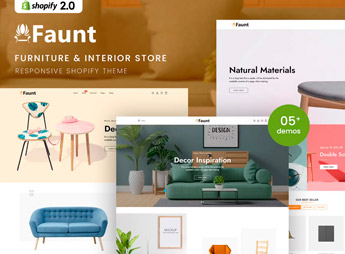
Faunt reimagines the standard Shopify layout into a furniture and interior decor store, with room-set photos, a materials specification sheet next to the price, and blocks that combine pieces of the same style into a single room composition. It caters to those who assemble complete environments or sell individual pieces and need to show how each piece of furniture looks in a real room, and not isolated on a generic white background.
Faunt’s Main Features
- Room-set photo
Displays the furniture within a staged room, not just isolated on a background. - Room composition block
Groups pieces of the same style to suggest the complete room decor. - Material specification sheet
Shows the wood, fabric, and dimensions of the furniture in a separate tab from the description. - Texture zoom
Magnifies the upholstery or wood finish before the purchase decision. - Filter by room and style
Allows the customer to search by living room, bedroom, kitchen, or finish line.
Faunt’s Benefits
- Bundled environment sale
The room composition encourages the customer to buy more than one piece. - Fewer returns due to doubt
The material specification sheet reduces surprises with texture or color received at home. - More direct navigation
The room filter saves the customer from scrolling through the entire catalog. - Catalog with a studio look
The room-set photos elevate the perceived value without extra production costs.
Who is Faunt for?
- Those who sell custom or individual furniture for home and office.
- Those who assemble and sell interior decor items by environment.
- Those who produce handcrafted wood or upholstered pieces on order.
- Those who need to show texture and finish before online purchase.
How to Download Faunt
Faunt is available for download here on Ultrapack. After obtaining the compressed file, installation on Shopify happens in Online Store > Themes > Add theme, sending the package to publish the furniture storefront on the store.
Replacing the example photos with real showroom images before publishing prevents the customer from seeing products that are not part of the catalog. The Shopify theme editor allows you to adjust colors and fonts without touching code, maintaining the brand’s visual consistency.
Frequently asked questions
Is Faunt – Furniture & Interior Shopify 2.0 Theme GPL?
Yes. Faunt – Furniture & Interior Shopify 2.0 Theme is distributed under the GPL (GNU General Public License). You may legally use, modify and redistribute it on as many sites as you want.
Can I use Faunt – Furniture & Interior Shopify 2.0 Theme on more than one site?
Yes. You can use Faunt – Furniture & Interior Shopify 2.0 Theme on as many sites as you want.
How much does Faunt – Furniture & Interior Shopify 2.0 Theme cost at Ultrapack?
Faunt – Furniture & Interior Shopify 2.0 Theme costs US$2.99 as a single purchase, and it is also included in the subscription plans starting at US$17/mo (Desenvolvedor I).
Does Faunt – Furniture & Interior Shopify 2.0 Theme include updates?
When a new version of Faunt – Furniture & Interior Shopify 2.0 Theme becomes available in the catalog, you can download the file during the access period of your purchase or subscription. To update, follow the installation or import procedure described in the documentation for the item and its platform.
Is Faunt – Furniture & Interior Shopify 2.0 Theme checked before it is made available for download?
Files for Faunt – Furniture & Interior Shopify 2.0 Theme are scanned before publication by UltraHub using ClamAV and YARA rules to detect known threats. This check does not guarantee the absence of risks. Check the item requirements, make a backup, and follow the installation or import instructions for its platform.
How to install
Updates: manual. When a new version comes out, download it on this same page and upload the new file from the Shopify admin. This item is not installed through WordPress.
A Shopify theme is not installed on WordPress. It is uploaded in your store dashboard.
- Download the file
elements-faunt-furniture-interior-shopify-2-0-theme.zipand extract it on your computer. - Inside the package, look for the theme ZIP, which is the file Shopify accepts. It is usually in a folder named after the theme, and it has the
assets,layout,sectionsandtemplatesfolders inside. - In the Shopify dashboard, go to Online Store > Themes.
- Under Theme library, click Add theme > Upload zip file and upload the theme ZIP.
- Use Preview to check it, and Publish when you want it live.
- Shopify rejects packages that are too large. If the upload fails because of size, take the documentation and demo files out of the folder before zipping it.
Stuck on a step? Open a ticket telling us which one you stopped at.


