

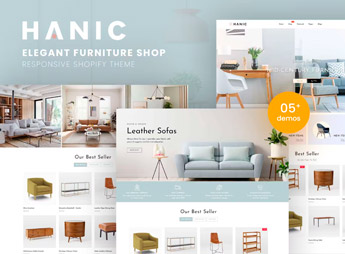
Description
Hanic structures a Shopify furniture and decor store, with a grid showcase for rooms, close-up image gallery for finishes, and collection blocks organized by room of the house. It’s useful for those who resell custom-made furniture, decor pieces, or interior items and need a catalog with wide-angle photos that show the texture, material, and finish of each piece before home delivery, without needing to visit a physical store.
Hanic’s Main Features
- Showcase by Room
Groups furniture and decor pieces by room, such as living room and bedroom. - Gallery with Zoom
Enlarges the product image to show texture and material finish. - Collections Block
Brings together furniture lines with the same style on a single page. - Piece Technical Sheet
Shows measurements, material, and available color directly on the product page. - New Arrivals Section
Highlights new pieces and recent collections on the store’s home page.
Hanic’s Benefits
- Safer Decision
Detailed photos reduce doubt about the furniture’s texture and finish. - Navigation by Room
The customer finds pieces by thinking about the room they want to decorate. - Fewer Returns
The complete technical sheet prevents buying a piece with incompatible measurements. - Always Updated Catalog
Recent collections become visible as soon as they arrive in the store’s stock.
Who Is Hanic Recommended For?
- Those who resell custom-made or made-to-order furniture.
- Those who sell decor objects and interior items.
- Those who put together complete settings and work with collections by style.
- Those who already have a physical store and want a complementary online catalog.
How to Download Hanic
Hanic is available for download here at Ultrapack. Installation follows the Shopify path, under Online Store > Themes > Add theme, uploading the compressed file directly through the store’s dashboard. Once installed, just organize the catalog by room and register the product photos.
Furniture and decor pieces sell through imagery, so the photo that shows the texture of the fabric or the shine of the finish carries more weight than any description text. Hanic organizes this visual content by room, which helps the customer imagine the piece already inside their own home.
Frequently asked questions
Is Hanic – Elegant Furniture Shop For Shopify GPL?
Yes. Hanic – Elegant Furniture Shop For Shopify is distributed under the GPL (GNU General Public License). You may legally use, modify and redistribute it on as many sites as you want.
Can I use Hanic – Elegant Furniture Shop For Shopify on more than one site?
Yes. You can use Hanic – Elegant Furniture Shop For Shopify on as many sites as you want.
How much does Hanic – Elegant Furniture Shop For Shopify cost at Ultrapack?
Hanic – Elegant Furniture Shop For Shopify costs US$2.99 as a single purchase, and it is also included in the subscription plans starting at US$17/mo (Desenvolvedor I).
Does Hanic – Elegant Furniture Shop For Shopify include updates?
When a new version of Hanic – Elegant Furniture Shop For Shopify becomes available in the catalog, you can download the file during the access period of your purchase or subscription. To update, follow the installation or import procedure described in the documentation for the item and its platform.
Is Hanic – Elegant Furniture Shop For Shopify checked before it is made available for download?
Files for Hanic – Elegant Furniture Shop For Shopify are scanned before publication by UltraHub using ClamAV and YARA rules to detect known threats. This check does not guarantee the absence of risks. Check the item requirements, make a backup, and follow the installation or import instructions for its platform.
How to install
Updates: manual. When a new version comes out, download it on this same page and upload the new file from the Shopify admin. This item is not installed through WordPress.
A Shopify theme is not installed on WordPress. It is uploaded in your store dashboard.
- Download the file
elements-hanic-elegant-furniture-shop-for-shopify.zipand extract it on your computer. - Inside the package, look for the theme ZIP, which is the file Shopify accepts. It is usually in a folder named after the theme, and it has the
assets,layout,sectionsandtemplatesfolders inside. - In the Shopify dashboard, go to Online Store > Themes.
- Under Theme library, click Add theme > Upload zip file and upload the theme ZIP.
- Use Preview to check it, and Publish when you want it live.
- Shopify rejects packages that are too large. If the upload fails because of size, take the documentation and demo files out of the folder before zipping it.
Stuck on a step? Open a ticket telling us which one you stopped at.


