

Description
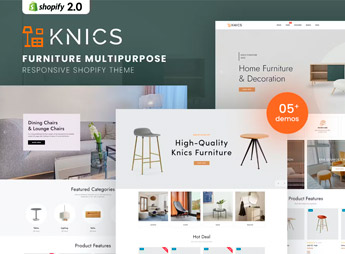
Knics organizes a multipurpose Shopify store for furniture and home decor, with catalog sections split by room, filters for material, color, and price range, and product pages with multi-angle galleries. It’s for anyone selling built-in furniture, decor items, or signature design pieces who needs to present dimensions, finishes, and room compositions in an organized way for shoppers remodeling or furnishing their own home.
Key Features of Knics
- Filter by room
Splits the catalog into living room, bedroom, kitchen, and office in just a few clicks. - Multi-angle gallery
Shows each piece of furniture from several angles and in sample styled rooms. - Product spec sheet
Sets aside a field for dimensions, material, and weight capacity for every piece. - Decor style selection
Organizes collections by style, from rustic to minimalist, on dedicated pages. - Responsive layout for large catalogs
Keeps browsing smooth even with hundreds of items listed in the store.
Benefits of Knics
- Easier buying decisions
Cuts down customer uncertainty by showing measurements and finishes before delivery. - Catalog by room
Helps shoppers decorating an entire room find everything in one place. - Premium look with no extra effort
Gives the store a polished visual finish that matches designer furniture. - Fewer returns from wrong sizing
Reduces exchanges by keeping dimensions visible right on the product page.
Who Is Knics For?
- Sellers of built-in or custom furniture.
- Home decor and housewares stores.
- Woodworking shops and signature furniture design studios.
- Resellers of imported decor pieces.
How to Download Knics
Knics is available for download here at Ultrapack. In the store admin, go to Online Store > Themes > Add theme and upload the file to install the layout. Then adjust colors, banners, and collection order through the Shopify theme editor.
Furniture stores often lose sales when customers can’t picture the size and finish before buying. Knics organizes that information from the very first visit, which cuts down on support questions and makes the decision easier for anyone furnishing an entire room online.
Frequently asked questions
Is Knics – Furniture Multipurpose Shopify Theme GPL?
Yes. Knics – Furniture Multipurpose Shopify Theme is distributed under the GPL (GNU General Public License). You may legally use, modify and redistribute it on as many sites as you want.
Can I use Knics – Furniture Multipurpose Shopify Theme on more than one site?
Yes. You can use Knics – Furniture Multipurpose Shopify Theme on as many sites as you want.
How much does Knics – Furniture Multipurpose Shopify Theme cost at Ultrapack?
Knics – Furniture Multipurpose Shopify Theme costs US$2.99 as a single purchase, and it is also included in the subscription plans starting at US$17/mo (Desenvolvedor I).
Does Knics – Furniture Multipurpose Shopify Theme include updates?
When a new version of Knics – Furniture Multipurpose Shopify Theme becomes available in the catalog, you can download the file during the access period of your purchase or subscription. To update, follow the installation or import procedure described in the documentation for the item and its platform.
Is Knics – Furniture Multipurpose Shopify Theme checked before it is made available for download?
Files for Knics – Furniture Multipurpose Shopify Theme are scanned before publication by UltraHub using ClamAV and YARA rules to detect known threats. This check does not guarantee the absence of risks. Check the item requirements, make a backup, and follow the installation or import instructions for its platform.
How to install
Updates: manual. When a new version comes out, download it on this same page and upload the new file from the Shopify admin. This item is not installed through WordPress.
A Shopify theme is not installed on WordPress. It is uploaded in your store dashboard.
- Download the file
elements-knics-furniture-multipurpose-shopify-theme.zipand extract it on your computer. - Inside the package, look for the theme ZIP, which is the file Shopify accepts. It is usually in a folder named after the theme, and it has the
assets,layout,sectionsandtemplatesfolders inside. - In the Shopify dashboard, go to Online Store > Themes.
- Under Theme library, click Add theme > Upload zip file and upload the theme ZIP.
- Use Preview to check it, and Publish when you want it live.
- Shopify rejects packages that are too large. If the upload fails because of size, take the documentation and demo files out of the folder before zipping it.
Stuck on a step? Open a ticket telling us which one you stopped at.


