

Description
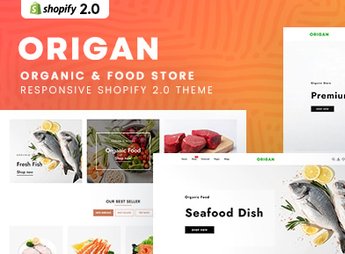
Origan builds a Shopify store for a butcher shop, grocery store, and organic food business, with a product grid by category (meats, fruits, vegetables, and grocery), a search filter by cut type and item weight, and highlight blocks for deals and combos on the homepage. The theme serves anyone who sells meat, fresh produce, or grocery baskets online, and helps the customer put together the weekly order with weight, cut, and expiration date visible before closing the cart.
Origan’s Main Features
- Food categories
Separates meats, fresh produce, and grocery into their own categories in the store. - Filter by cut type
Lets you filter meats by cut type directly in the catalog. - Deals and combos
Highlights combos and discounted products on the homepage. - Weight and expiration date on the product
Shows the weight and expiration date of each item on the product page. - Responsive layout
Adjusts the menu, product grid, and cart for mobile and tablet.
Origan’s Benefits
- Faster weekly shopping
Helps the customer close out the weekly order without wasting time. - Fewer mistaken exchanges
Visible weight and cut prevent wrong orders at the butcher shop. - More combo sales
Featured deals increase the sale of combos and kits. - Consistent store on any screen
Keeps the same navigation from desktop to mobile without breaking the layout.
Who Is Origan For?
- Anyone who sells meat and butcher shop products online.
- Grocery stores and neighborhood markets that want to sell online.
- Anyone who puts together organic food baskets by subscription.
- Meat distributors that serve restaurants and families.
How to Download Origan
Origan is available for download here at Ultrapack. After downloading the file, install it through the Online Store > Themes > Add theme path in the Shopify dashboard and register the weight and expiration date of the products before publishing.
It’s worth reviewing the weight, cut, and expiration date text for each item before publishing, since this type of store tends to sell based on trust in the product information. Anyone who already delivers to homes can use the featured combos to increase the average order value.
Frequently asked questions
Is Origan – Organic & Food Store Shopify 2.0 Theme GPL?
Yes. Origan – Organic & Food Store Shopify 2.0 Theme is distributed under the GPL (GNU General Public License). You may legally use, modify and redistribute it on as many sites as you want.
Can I use Origan – Organic & Food Store Shopify 2.0 Theme on more than one site?
Yes. You can use Origan – Organic & Food Store Shopify 2.0 Theme on as many sites as you want.
How much does Origan – Organic & Food Store Shopify 2.0 Theme cost at Ultrapack?
Origan – Organic & Food Store Shopify 2.0 Theme costs US$2.99 as a single purchase, and it is also included in the subscription plans starting at US$17/mo (Desenvolvedor I).
Does Origan – Organic & Food Store Shopify 2.0 Theme include updates?
When a new version of Origan – Organic & Food Store Shopify 2.0 Theme becomes available in the catalog, you can download the file during the access period of your purchase or subscription. To update, follow the installation or import procedure described in the documentation for the item and its platform.
Is Origan – Organic & Food Store Shopify 2.0 Theme checked before it is made available for download?
Files for Origan – Organic & Food Store Shopify 2.0 Theme are scanned before publication by UltraHub using ClamAV and YARA rules to detect known threats. This check does not guarantee the absence of risks. Check the item requirements, make a backup, and follow the installation or import instructions for its platform.
How to install
Updates: manual. When a new version comes out, download it on this same page and upload the new file from the Shopify admin. This item is not installed through WordPress.
A Shopify theme is not installed on WordPress. It is uploaded in your store dashboard.
- Download the file
elements-origan-organic-food-store-shopify-2-0-theme.zipand extract it on your computer. - Inside the package, look for the theme ZIP, which is the file Shopify accepts. It is usually in a folder named after the theme, and it has the
assets,layout,sectionsandtemplatesfolders inside. - In the Shopify dashboard, go to Online Store > Themes.
- Under Theme library, click Add theme > Upload zip file and upload the theme ZIP.
- Use Preview to check it, and Publish when you want it live.
- Shopify rejects packages that are too large. If the upload fails because of size, take the documentation and demo files out of the folder before zipping it.
Stuck on a step? Open a ticket telling us which one you stopped at.


