

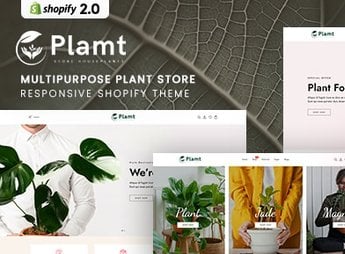
Description
Plamt sets up a Shopify 2.0 store for those who sell plants, seedlings, and gardening items, with catalog sections by environment, a plant care guide, a filter by pot size, and landscaping kits ready to edit. It is built for anyone who does residential landscaping or sells plants online and needs to show color variation, pot size, and delivery method without depending on a developer for every adjustment.
Main Features of Plamt
- Catalog by environment
Organizes plants into categories like indoor, garden, and outdoor area. - Plant care guide
Shows ideal light, watering, and temperature right on the product page. - Filter by pot size
Lets the customer choose the pot based on the space available at home. - Landscaping kit
Groups plants, pots, and fertilizer ready for purchase in a single package. - Photo gallery by variation
Displays each color and pot size in separate photos on the product page.
Benefits of Plamt
- Less doubt before purchase
The care guide reduces questions about how to keep the plant alive. - More organized catalog
Makes it easier to find the right plant by environment without scrolling through the whole page. - Higher average ticket
The landscaping kit encourages buying more than one item at a time. - Fewer mistaken exchanges
Photos by variation and pot measurements prevent orders in the wrong size.
Who Is Plamt For?
- Anyone who sells plants, seedlings, or pots in their own online store.
- Anyone who provides landscaping services and wants to sell kits online.
- Anyone who manages a nursery or flower shop with delivery to customers.
- Anyone who resells gardening items like fertilizer, pots, and tools.
How to Download Plamt
Plamt is available for download here on Ultrapack. After downloading the file, go to Online Store > Themes > Add theme in the Shopify admin, upload the package, and activate the theme to replace the current layout with Plamt’s sections.
The clean visual style with a focus on large photos helps convey the real look of each plant, which usually weighs heavily on the purchase decision of customers who cannot see the product up close before receiving it. The section-based structure also makes it easy to adapt the store for occasions like spring or seasonal gardening campaigns.
Frequently asked questions
Is Plamt – MultiPurpose Plant Store Shopify 2.0 Theme GPL?
Yes. Plamt – MultiPurpose Plant Store Shopify 2.0 Theme is distributed under the GPL (GNU General Public License). You may legally use, modify and redistribute it on as many sites as you want.
Can I use Plamt – MultiPurpose Plant Store Shopify 2.0 Theme on more than one site?
Yes. You can use Plamt – MultiPurpose Plant Store Shopify 2.0 Theme on as many sites as you want.
How much does Plamt – MultiPurpose Plant Store Shopify 2.0 Theme cost at Ultrapack?
Plamt – MultiPurpose Plant Store Shopify 2.0 Theme costs US$2.99 as a single purchase, and it is also included in the subscription plans starting at US$17/mo (Desenvolvedor I).
Does Plamt – MultiPurpose Plant Store Shopify 2.0 Theme include updates?
When a new version of Plamt – MultiPurpose Plant Store Shopify 2.0 Theme becomes available in the catalog, you can download the file during the access period of your purchase or subscription. To update, follow the installation or import procedure described in the documentation for the item and its platform.
Is Plamt – MultiPurpose Plant Store Shopify 2.0 Theme checked before it is made available for download?
Files for Plamt – MultiPurpose Plant Store Shopify 2.0 Theme are scanned before publication by UltraHub using ClamAV and YARA rules to detect known threats. This check does not guarantee the absence of risks. Check the item requirements, make a backup, and follow the installation or import instructions for its platform.
How to install
Updates: manual. When a new version comes out, download it on this same page and upload the new file from the Shopify admin. This item is not installed through WordPress.
A Shopify theme is not installed on WordPress. It is uploaded in your store dashboard.
- Download the file
elements-plamt-multipurpose-plant-store-shopify-2-0-theme.zipand extract it on your computer. - Inside the package, look for the theme ZIP, which is the file Shopify accepts. It is usually in a folder named after the theme, and it has the
assets,layout,sectionsandtemplatesfolders inside. - In the Shopify dashboard, go to Online Store > Themes.
- Under Theme library, click Add theme > Upload zip file and upload the theme ZIP.
- Use Preview to check it, and Publish when you want it live.
- Shopify rejects packages that are too large. If the upload fails because of size, take the documentation and demo files out of the folder before zipping it.
Stuck on a step? Open a ticket telling us which one you stopped at.


