

Description
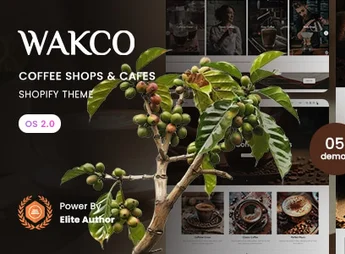
Wakco is a premium Shopify 2.0 theme, built with a warm and inviting design, specifically for coffee shops, cafes, bistros, and beverage stores. It offers a visually appealing and functional platform to showcase your products, from specialty coffee beans to artisanal sweets, delivering an online shopping experience as cozy as a visit to your physical location.
Main Features
- Responsive and Modern Design: Impeccable look across all devices, from desktops to smartphones, ensuring a great user experience.
- Shopify Online Store 2.0: Fully compatible with OS 2.0, enabling dynamic sections on all pages for maximum flexibility.
- Café Menu Layouts: Showcase your drinks, food and prices in elegant and easy-to-navigate menu layouts.
- Advanced Customization Options: Change colors, fonts and layouts easily through Shopify’s theme editor, without needing code.
- Image Galleries and Lookbook: Display your café’s ambiance, products and events with stunning photo galleries.
- Integrated Blog for Stories: Share your café’s story, recipes or community news with a beautifully designed blog layout.
Wakco Benefits
- Attract More Local Customers: A professional, SEO-optimized site helps customers find your café online and increases foot traffic to the physical store.
- Create a Memorable Brand: Wakco’s cohesive and elegant design strengthens your visual identity, delivering a consistent brand experience from online to offline.
- Facilitate Online Shopping: Sell coffee beans, merchandise or schedule pickups with a streamlined, intuitive checkout process, boosting your digital sales.
- Simple and Efficient Management: Thanks to Shopify 2.0 architecture, you can update your site, add promotions and manage content quickly and hassle-free.
Who It Is Recommended For?
- Café and coffee shop owners
- Tea shops, confectioneries, and artisanal bakeries
- Bistros, juice bars, and beverage-centric restaurants
With Wakco, you have the perfect tool to translate your café’s welcoming essence and unique flavor into an irresistible, profitable online presence.
Frequently asked questions
Is Wakco – Coffee Shops & Cafes Shopify 2.0 Theme GPL?
Yes. Wakco – Coffee Shops & Cafes Shopify 2.0 Theme is distributed under the GPL (GNU General Public License). You may legally use, modify and redistribute it on as many sites as you want.
Can I use Wakco – Coffee Shops & Cafes Shopify 2.0 Theme on more than one site?
Yes. You can use Wakco – Coffee Shops & Cafes Shopify 2.0 Theme on as many sites as you want.
How much does Wakco – Coffee Shops & Cafes Shopify 2.0 Theme cost at Ultrapack?
Wakco – Coffee Shops & Cafes Shopify 2.0 Theme costs US$2.99 as a single purchase, and it is also included in the subscription plans starting at US$17/mo (Desenvolvedor I).
Does Wakco – Coffee Shops & Cafes Shopify 2.0 Theme include updates?
When a new version of Wakco – Coffee Shops & Cafes Shopify 2.0 Theme becomes available in the catalog, you can download the file during the access period of your purchase or subscription. To update, follow the installation or import procedure described in the documentation for the item and its platform.
Is Wakco – Coffee Shops & Cafes Shopify 2.0 Theme checked before it is made available for download?
Files for Wakco – Coffee Shops & Cafes Shopify 2.0 Theme are scanned before publication by UltraHub using ClamAV and YARA rules to detect known threats. This check does not guarantee the absence of risks. Check the item requirements, make a backup, and follow the installation or import instructions for its platform.
How to install
Updates: manual. When a new version comes out, download it on this same page and upload the new file from the Shopify admin. This item is not installed through WordPress.
A Shopify theme is not installed on WordPress. It is uploaded in your store dashboard.
- Download the file
elements-wakco-coffee-shops-cafes-shopify-2-0-theme.zipand extract it on your computer. - Inside the package, look for the theme ZIP, which is the file Shopify accepts. It is usually in a folder named after the theme, and it has the
assets,layout,sectionsandtemplatesfolders inside. - In the Shopify dashboard, go to Online Store > Themes.
- Under Theme library, click Add theme > Upload zip file and upload the theme ZIP.
- Use Preview to check it, and Publish when you want it live.
- Shopify rejects packages that are too large. If the upload fails because of size, take the documentation and demo files out of the folder before zipping it.
Stuck on a step? Open a ticket telling us which one you stopped at.


