 UAU Ready
Description
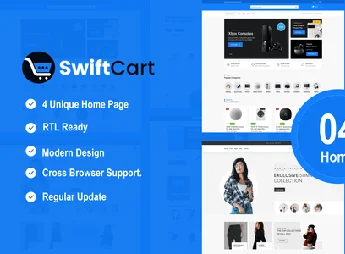
SwiftCart is a versatile theme, ideal for those looking to create an online store with WordPress. With a modern design focused on user experience, it is perfect for any type of online store, from small businesses to large corporations.
Main Features
- SEO Optimized:
With SwiftCart, the visibility of your online store on search engines is guaranteed. - Responsive Design:
Suitable for all screen sizes, whether on smartphones, tablets, or desktops. - Integration with WooCommerce:
Makes managing your online store’s products and sales easier. - Variety of layouts:
Offers layout options to enhance the presentation of your products. - Easy Customization:
Allows you to customize the online store according to your visual identity. - Compatible with various plugins:
Can be used with several popular WordPress plugins.
Benefits of SwiftCart
- Convenience: Allows customers to shop anytime and anywhere.
- Ease of Use: Offers an intuitive and easy-to-use interface.
- Increase in Sales: Boosts sales through SEO optimization and integration with WooCommerce.
- Customization: Provides the possibility of customization, allowing the online store to reflect the brand’s identity.
Who Is It For?
- Entrepreneurs who want to open their own online store
- Businesses of all sizes seeking an effective online presence
- Marketing professionals looking to increase their product visibility on the internet
With SwiftCart, you have the opportunity to own a dynamic, SEO-optimized, and highly customizable online store. Its variety of layouts and integration with WooCommerce ensure an excellent shopping experience for your customers, increasing the visibility and sales of your products. With so many advantages, SwiftCart is undoubtedly the best choice for your online store.
Frequently asked questions
Is SwiftCart – Multipurpose WooCommerce WordPress Theme GPL-licensed?
Yes. SwiftCart – Multipurpose WooCommerce WordPress Theme is distributed under the GPL (GNU General Public License). You may legally use, modify and redistribute it on as many sites as you want.
Can I use SwiftCart – Multipurpose WooCommerce WordPress Theme on multiple sites?
Yes. You can install SwiftCart – Multipurpose WooCommerce WordPress Theme on as many sites as you want. Only automatic updates through Ultrapack Auto Updater have a limit: from 3 to 80 sites, depending on the plan.
How much does SwiftCart – Multipurpose WooCommerce WordPress Theme cost at Ultrapack?
SwiftCart – Multipurpose WooCommerce WordPress Theme costs US$2.99 as a single purchase, and it is also included in the subscription plans starting at US$12/mo (VIP I).
Does SwiftCart – Multipurpose WooCommerce WordPress Theme include updates?
Yes. The current version of SwiftCart – Multipurpose WooCommerce WordPress Theme is 1.0.3, published at Ultrapack on Aug 19, 2026. Subscribers update straight from the WordPress dashboard with UAU (Ultrapack Auto Updater).
Is SwiftCart – Multipurpose WooCommerce WordPress Theme scanned before publication?
Yes. Every version of SwiftCart – Multipurpose WooCommerce WordPress Theme goes through a malware scan (ClamAV and YARA rules, at UltraHub) before it is published.
How to install
Automatic updates: this item is updated by the Ultrapack Auto Updater. With it installed, the new version shows up in your dashboard like any other WordPress update (how to set it up).
The file on this page is the full package the author publishes on the marketplace: the theme, the documentation and sometimes the plugins it uses. Do not upload that file through the dashboard, because WordPress cannot find the theme inside it. What gets installed is the theme folder, which is in there.
- Download the file
elements-swiftcart-multipurpose-woocommerce-wordpress-the.zipand extract it on your computer. - If the extracted package contains another ZIP file named after the theme, extract that ZIP as well before looking for the theme folder.
- Look for the folder that has the
style.cssfile and thescreenshot.pngimage. That is the theme folder. - Zip that folder only. Do not use RAR.
- In the WordPress dashboard, go to Appearance > Themes > Add New > Upload Theme and upload the ZIP file you just created.
- Click Activate.
- Uploading the whole package is the most common mistake when installing a theme. WordPress answers that no valid theme was found, and nothing is installed.
- If after extracting you already find
style.cssandscreenshot.pngin the main folder, that folder is the theme folder. - The rest of the package belongs to the author: documentation, demo files and, in some themes, the plugins it asks for during setup.
Stuck on a step? Open a ticket telling us which one you stopped at.