

Description
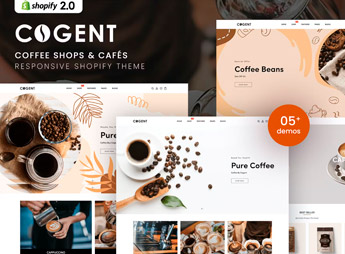
Cogent builds a Shopify store for coffee shops, roasters, and neighborhood cafés, with product pages that highlight the bean’s origin, roast level, and recommended brewing method for each type of coffee or house blend. Anyone who roasts and sells coffee in beans, ground, or capsule form gets a storefront that separates the line by intensity, origin, and drink type, from espresso to filter coffee, including the house menu.
Cogent’s Main Features
- Bean origin sheet
Displays the country, farm, and altitude of each coffee lot. - Intensity scale
Shows the roast level from light to dark on each product. - Brewing method guide
Recommends filter, espresso, or French press for each type of bean. - Menu integrated with the catalog
Displays the café’s menu alongside the products sold for takeout. - Monthly coffee subscription
Organizes recurring bean shipping plans right in the storefront.
Cogent’s Benefits
- Higher perceived quality
The origin sheet justifies the price of a roast-quality coffee. - Profile-guided choice
The intensity scale helps someone unfamiliar with coffee decide quickly. - Recurring revenue
Subscription plans guarantee monthly sales without depending on a new campaign. - Ready-made store with no coding
Drag-and-drop sections build the page without requiring any code.
Who Is Cogent Best Suited For?
- Roasters that sell coffee in beans and ground online.
- Cafés that want to bring their menu to the website.
- Anyone building a monthly coffee subscription club.
- Specialty coffee distributors selling to other cafés.
How to Download Cogent
Cogent is available for download here on Ultrapack. Installation follows the standard Shopify path, under Online Store > Themes > Add theme, uploading the theme package to publish the new layout. After that, just register the coffees, set the roast scale, and adjust the menu.
Specialty coffee sells on origin and process, not just on price per kilo. Cogent gives you room to tell that story right on the product page, with information that helps someone who has never tried that lot choose with more confidence and repeat the purchase the following month.
Frequently asked questions
Is Cogent – Coffee Shops & Cafés Shopify 2.0 Theme GPL?
Yes. Cogent – Coffee Shops & Cafés Shopify 2.0 Theme is distributed under the GPL (GNU General Public License). You may legally use, modify and redistribute it on as many sites as you want.
Can I use Cogent – Coffee Shops & Cafés Shopify 2.0 Theme on more than one site?
Yes. You can use Cogent – Coffee Shops & Cafés Shopify 2.0 Theme on as many sites as you want.
How much does Cogent – Coffee Shops & Cafés Shopify 2.0 Theme cost at Ultrapack?
Cogent – Coffee Shops & Cafés Shopify 2.0 Theme costs US$2.99 as a single purchase, and it is also included in the subscription plans starting at US$17/mo (Desenvolvedor I).
Does Cogent – Coffee Shops & Cafés Shopify 2.0 Theme include updates?
When a new version of Cogent – Coffee Shops & Cafés Shopify 2.0 Theme becomes available in the catalog, you can download the file during the access period of your purchase or subscription. To update, follow the installation or import procedure described in the documentation for the item and its platform.
Is Cogent – Coffee Shops & Cafés Shopify 2.0 Theme checked before it is made available for download?
Files for Cogent – Coffee Shops & Cafés Shopify 2.0 Theme are scanned before publication by UltraHub using ClamAV and YARA rules to detect known threats. This check does not guarantee the absence of risks. Check the item requirements, make a backup, and follow the installation or import instructions for its platform.
How to install
Updates: manual. When a new version comes out, download it on this same page and upload the new file from the Shopify admin. This item is not installed through WordPress.
A Shopify theme is not installed on WordPress. It is uploaded in your store dashboard.
- Download the file
elements-cogent-coffee-shops-cafes-shopify-2-0-theme.zipand extract it on your computer. - Inside the package, look for the theme ZIP, which is the file Shopify accepts. It is usually in a folder named after the theme, and it has the
assets,layout,sectionsandtemplatesfolders inside. - In the Shopify dashboard, go to Online Store > Themes.
- Under Theme library, click Add theme > Upload zip file and upload the theme ZIP.
- Use Preview to check it, and Publish when you want it live.
- Shopify rejects packages that are too large. If the upload fails because of size, take the documentation and demo files out of the folder before zipping it.
Stuck on a step? Open a ticket telling us which one you stopped at.


