

Description
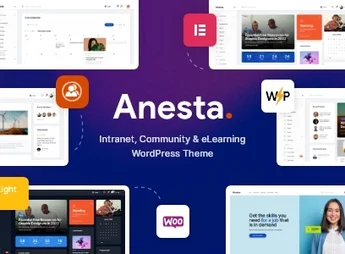
Anesta is a theme designed for those looking to create an online community or intranet. With a modern and responsive design, it caters to those who desire an effective and attractive interaction platform. Ideal for companies, schools, non-profit organizations, or any other group requiring a private virtual space to share information and collaborate.
Key Features
- Compatibility with BuddyPress:
Perfect integration with the popular community platform BuddyPress. - Optimized for SEO:
Design prepared for search engines, ensuring better visibility. - 100% responsive:
The layout adapts to any screen size, from desktops to mobile devices. - Elementor Page Builder:
Build your pages intuitively with Elementor Page Builder. - Shortcode Variety:
A vast collection of shortcodes to add functionality to your site. - WPML Ready:
Translation-ready, allowing your site to reach a global audience.
Benefits of Anesta
- Higher Engagement: With community features, it promotes interaction and collaboration.
- SEO Optimization: Reach better positions in search engines.
- Flexibility: Customize your site to fit your needs.
- Global Reach: With support for multiple languages, your site can reach an international audience.
Who Is It Intended For?
- Companies that want to create an intranet.
- Non-profit organizations looking for a community platform.
- Schools and educational institutions that need a space for online interaction.
Anesta brings together intranet and community capabilities in a single package, while also featuring a modern and responsive design. If the goal is to promote interaction, collaboration, and sharing of information in a private virtual environment, this is the right theme.
Frequently asked questions
Is Anesta – Intranet, Extranet, Community and BuddyPress WordPress Theme GPL-licensed?
Yes. Anesta – Intranet, Extranet, Community and BuddyPress WordPress Theme is distributed under the GPL (GNU General Public License). You may legally use, modify and redistribute it on as many sites as you want.
Can I use Anesta – Intranet, Extranet, Community and BuddyPress WordPress Theme on multiple sites?
Yes. You can install Anesta – Intranet, Extranet, Community and BuddyPress WordPress Theme on as many sites as you want. Only automatic updates through Ultrapack Auto Updater have a limit: from 3 to 80 sites, depending on the plan.
How much does Anesta – Intranet, Extranet, Community and BuddyPress WordPress Theme cost at Ultrapack?
Anesta – Intranet, Extranet, Community and BuddyPress WordPress Theme costs US$2.99 as a single purchase, and it is also included in the subscription plans starting at US$12/mo (VIP I).
Does Anesta – Intranet, Extranet, Community and BuddyPress WordPress Theme include updates?
Yes. The current version of Anesta – Intranet, Extranet, Community and BuddyPress WordPress Theme is 1.5.4, published at Ultrapack on Apr 1, 2026. Subscribers update straight from the WordPress dashboard with UAU (Ultrapack Auto Updater).
Is Anesta – Intranet, Extranet, Community and BuddyPress WordPress Theme scanned before publication?
Yes. Every version of Anesta – Intranet, Extranet, Community and BuddyPress WordPress Theme goes through a malware scan (ClamAV and YARA rules, at UltraHub) before it is published.
How to install
Updates: manual. When a new version comes out, download it on this same page and upload it over the old one; WordPress asks whether you want to replace the current version.
The file on this page is the full package the author publishes on the marketplace: the theme, the documentation and sometimes the plugins it uses. Do not upload that file through the dashboard, because WordPress cannot find the theme inside it. What gets installed is the theme folder, which is in there.
- Download the file
themeforest-38185608-anesta-intranet-community-and-buddypress-wordpress-theme.zipand extract it on your computer. - If the extracted package contains another ZIP file named after the theme, extract that ZIP as well before looking for the theme folder.
- Look for the folder that has the
style.cssfile and thescreenshot.pngimage. That is the theme folder. - Zip that folder only. Do not use RAR.
- In the WordPress dashboard, go to Appearance > Themes > Add New > Upload Theme and upload the ZIP file you just created.
- Click Activate.
- Uploading the whole package is the most common mistake when installing a theme. WordPress answers that no valid theme was found, and nothing is installed.
- If after extracting you already find
style.cssandscreenshot.pngin the main folder, that folder is the theme folder. - The rest of the package belongs to the author: documentation, demo files and, in some themes, the plugins it asks for during setup.
Stuck on a step? Open a ticket telling us which one you stopped at.


